
01 / Getting started
Mission operations
Deliver friendly requests before they expire. Reach the first star to clear a main mission; contracts may add spending, hardware or recovery requirements. The campaign includes 24 main missions and 12 optional contracts.
- Review the load. Select a mission in Campaign. Read Waves, Towers and Goals, then Deploy.
- Place the equipment. Tap an equipment card, then a highlighted compatible site. Check credits and spare power before building.
- Commission, then dispatch. Let construction finish and tap Start wave. Pause stops traffic and all build, upgrade and repair jobs.
- Inspect the next wave. Tap the wave counter for Plan: Work, Threats and Disruptions. Keep Auto waves off for planned changes.
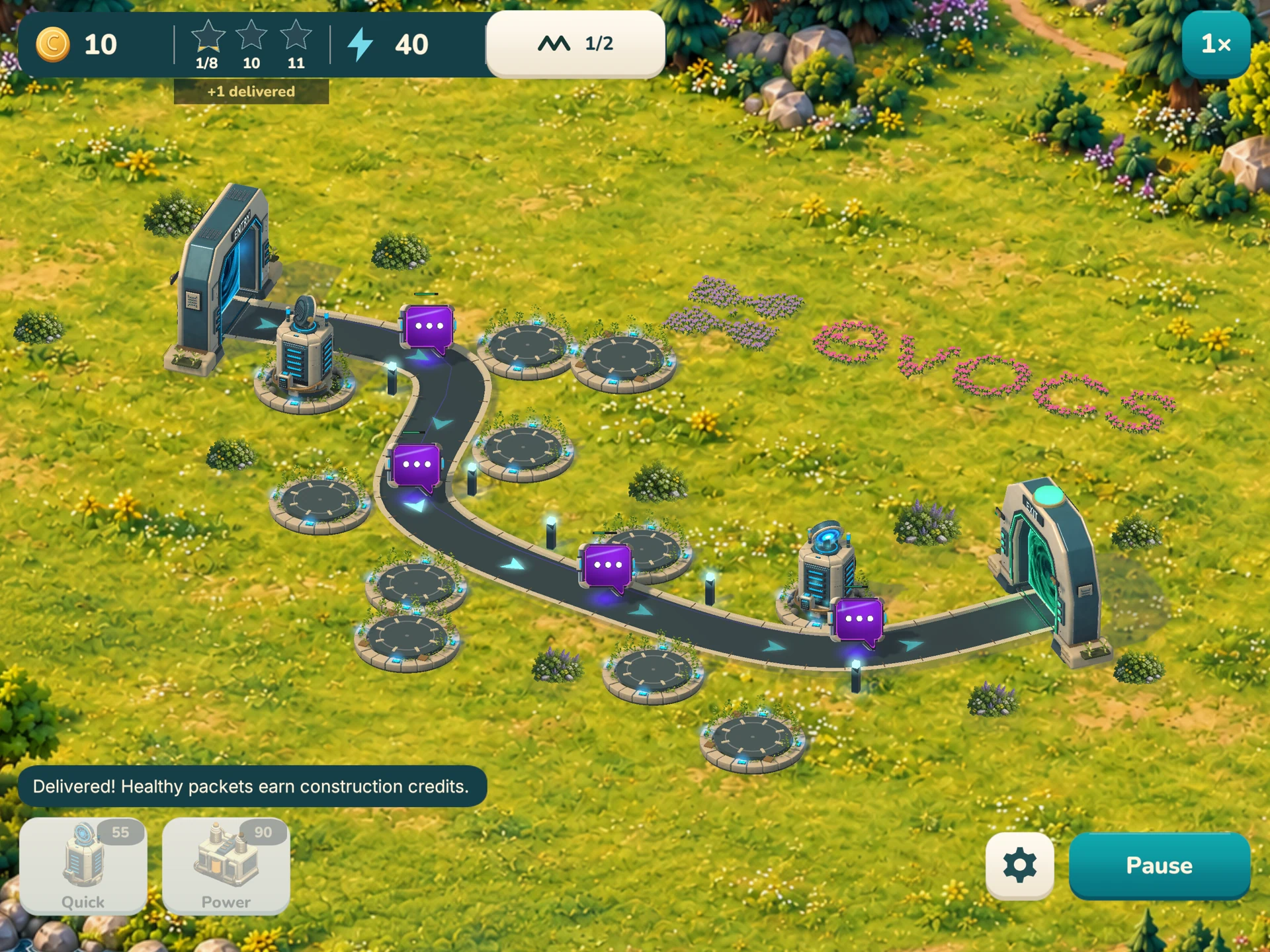
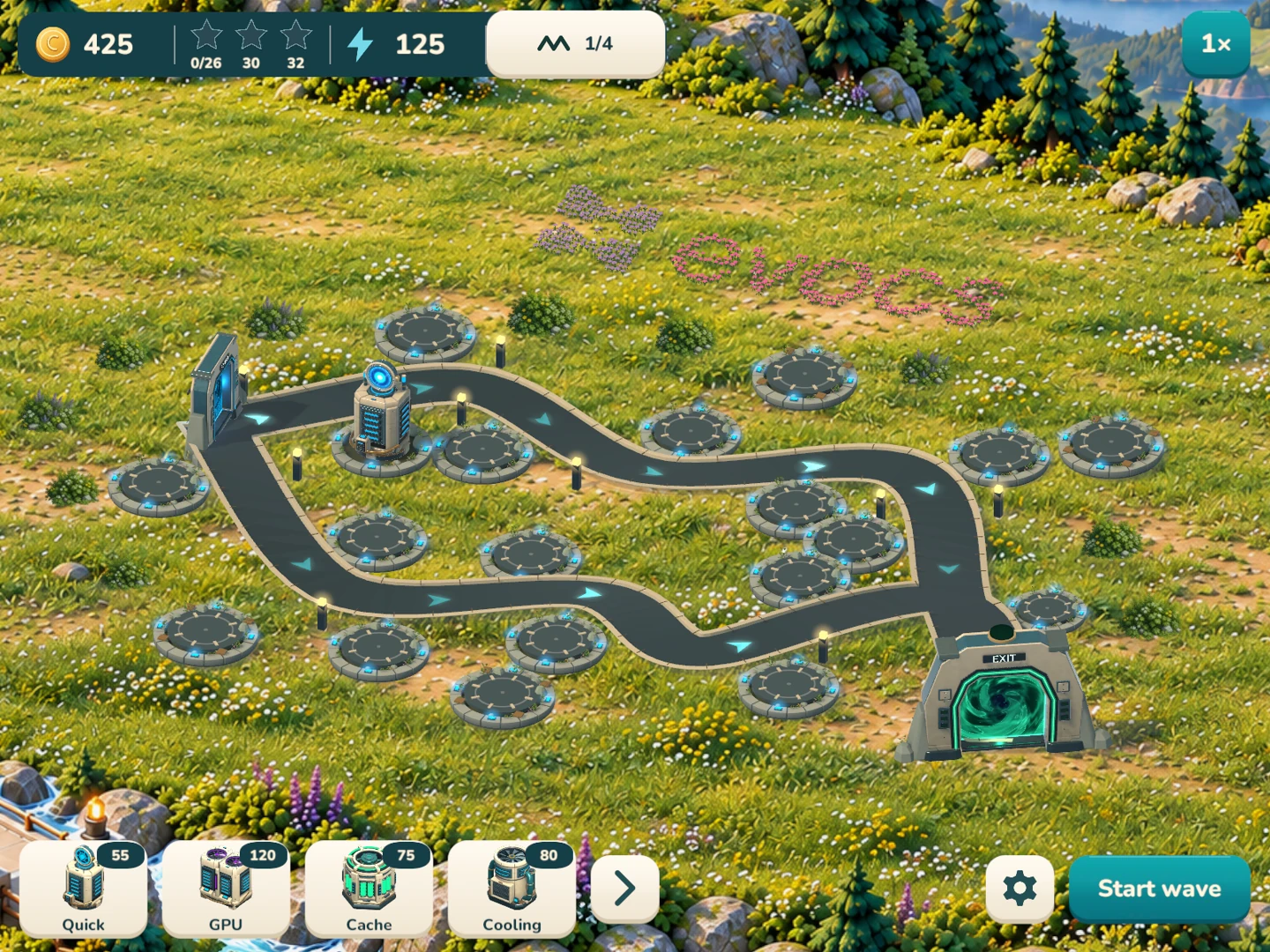
Mission 1: build a second Quick near the exit, then add a third before wave 2. Quick costs 55 credits. Deliver 8 / 10 / 11 of 12 requests for 1 / 2 / 3 stars.
Credits: deliveries fund the next build. Between waves, repair damage and finish commissioning before dispatch.
02 / Know the traffic
Workloads & threats
Friendly requests need service. Match the equipment to the workload, and keep hostile packets away from your compute.

| Request | Workload | Equipment |
|---|---|---|
| Chat | Light | Quick |
| Code | Fast | Quick |
| Image | Heavy | GPU |
| Batch | Slow, heavy | GPU |
| Threat | Symptom | Response |
|---|---|---|
| Corruption | Wrecks Quick/GPU, or spreads faults. | Firewall upstream; ECC for faulted friendlies. |
| Flood | Slows nearby friendly traffic by 25%. | Firewall; keep healing the delayed requests. |
| Malware | Jams a service tower for 4 seconds. | Firewall; cover the gap or pay for recovery. |
| Spoof | Consumes the first 3 compute pulses. | Firewall reveals it and deals damage immediately. |
03 / Plan your site
Equipment, power & cooling
Values are T1 / T2 / T3. The first credit price builds T1; the next two are separate upgrade charges. Power is shown in game MW.
On a narrow screen, scroll the table sideways to see every value.
| Equipment | In-game role | Credits T1 / T2 / T3 | MW T1 / T2 / T3 |
|---|---|---|---|
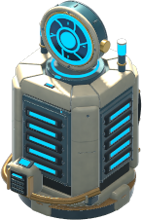 Quick Quick | Chat and Code healing. T2 prioritizes Code; T3 adds a critical-health rescue boost. | 55 / 65 / 125 | 10 / 18 / 32 |
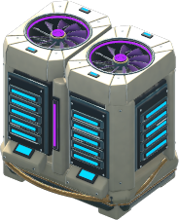 GPU GPU | Image and Batch healing. T2/T3 add healing splash to nearby heavy workloads. | 120 / 105 / 190 | 28 / 42 / 65 |
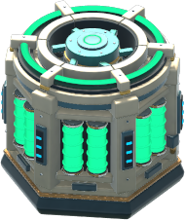 Cache Cache | Faster friendly transit and less health loss while requests are in coverage. | 75 / 95 / 175 | 16 / 24 / 36 |
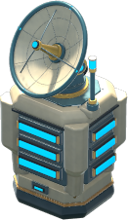 Traffic Gateway Traffic Gateway | Transit support, retry management and routing where alternate paths exist. | 110 / 110 / 185 | 18 / 24 / 32 |
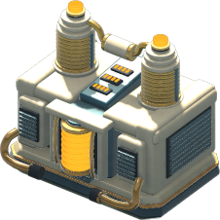 Power Power | Adds generation. Its own output is unavailable while it is being upgraded. | 90 / 100 / 180 | +80 / +140 / +220 |
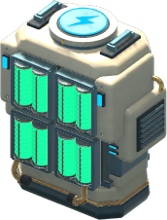 UPS Battery UPS Battery | Stores spare power for outages. Both stored energy and discharge output are limited. | 100 / 110 / 175 | 80 / 120 / 160* |
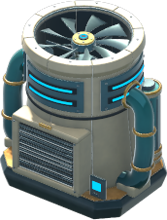 Cooling Cooling | Removes heat and boosts nearby compute. Select it to see its coverage dome. | 80 / 90 / 160 | 12 / 18 / 26 |
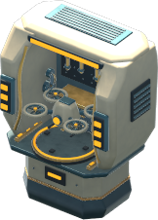 Maintenance Bay Maintenance Bay | Automatically dispatches paid repairs to wrecked or jammed equipment in range. | 125 / 125 / 200 | 16 / 22 / 30 |
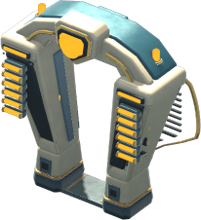 Firewall Firewall | Damages hostiles and reveals Spoof immediately. Upgraded Firewalls add Flood sweep. | 95 / 90 / 160 | 18 / 26 / 38 |
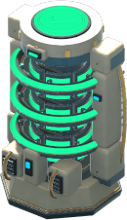 ECC Relay ECC Relay | Clears faults in friendly requests. T2/T3 correct nearby requests together. | 115 / 110 / 185 | 22 / 30 / 42 |
MW: draw for service/support equipment; + values are Power output. *UPS values are maximum discharge output, not continuous generation.
Power planning
Use Plan to check the supply affected by an outage. Charge UPS beforehand and compare its reserve with the expected load and outage duration.
Thermal limit
Above 75 heat, service is 35% slower. Add Cooling around the busy processors or spread work across more towers.
04 / New technology
Research & tower unlocks
Open Research from Home or mission results. Spend research points (RP) to unlock a tower family or its next tier.
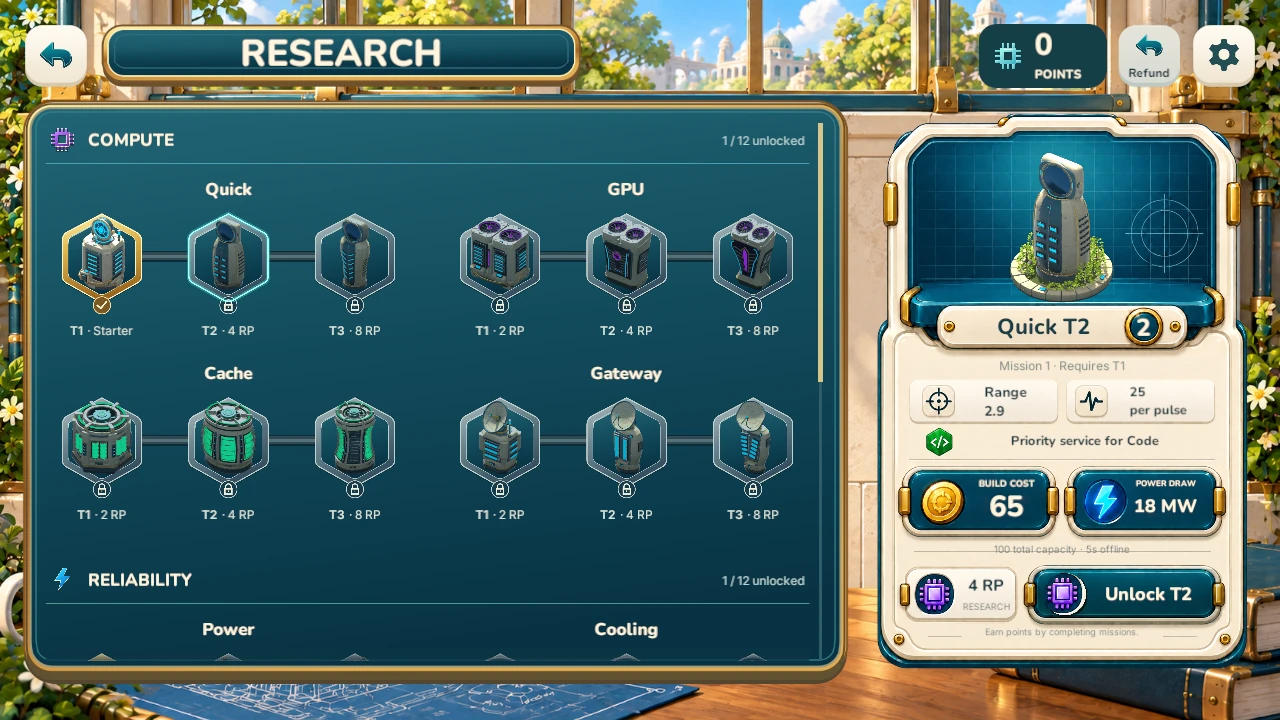
- Select the technology. Drag the tree, then tap a tower tier. The connected nodes show T1, T2 and T3 for that family.
- Check its requirements. Clear the named mission and own the previous tier. Quick T2 requires Mission 1 and Quick T1.
- Unlock it with RP. Tap Unlock tower, Unlock T2 or Unlock T3. Quick T2 costs 4 RP; its 65-credit installation is a separate mission purchase.
| Family | T1 | T2 | T3 |
|---|---|---|---|
| Quick | Start | 1 | 8 |
| GPU | 1 | 7 | 16 |
| Cache | 9 | 10 | 12 |
| Traffic Gateway | 10 | 12 | 20 |
| Power | Start | 6 | 16 |
| UPS Battery | 6 | 14 | 22 |
| Cooling | 2 | 5 | 13 |
| Maintenance Bay | 17 | 18 | 20 |
| Firewall | 4 | 8 | 19 |
| ECC Relay | 11 | 12 | 23 |
Research costs & saved runs
- T1: 2 RP / T2: 4 RP / T3: 8 RP. Quick and Power T1 are free starters. Mission results earn RP; improved replays pay only the extra reward.
- New runs use new research. Continue and Retry Opening retain the saved mission’s technology.
- Refund resets purchased research and returns the RP actually spent. EVOCS code unlocks remain.
- Mission loans grant temporary T1 access only. Stars record results and cannot be spent.
05 / Change windows
Upgrades
Tap a tower to open its inspector. Use the displayed status, credit price, power requirement and downtime to decide the next action.
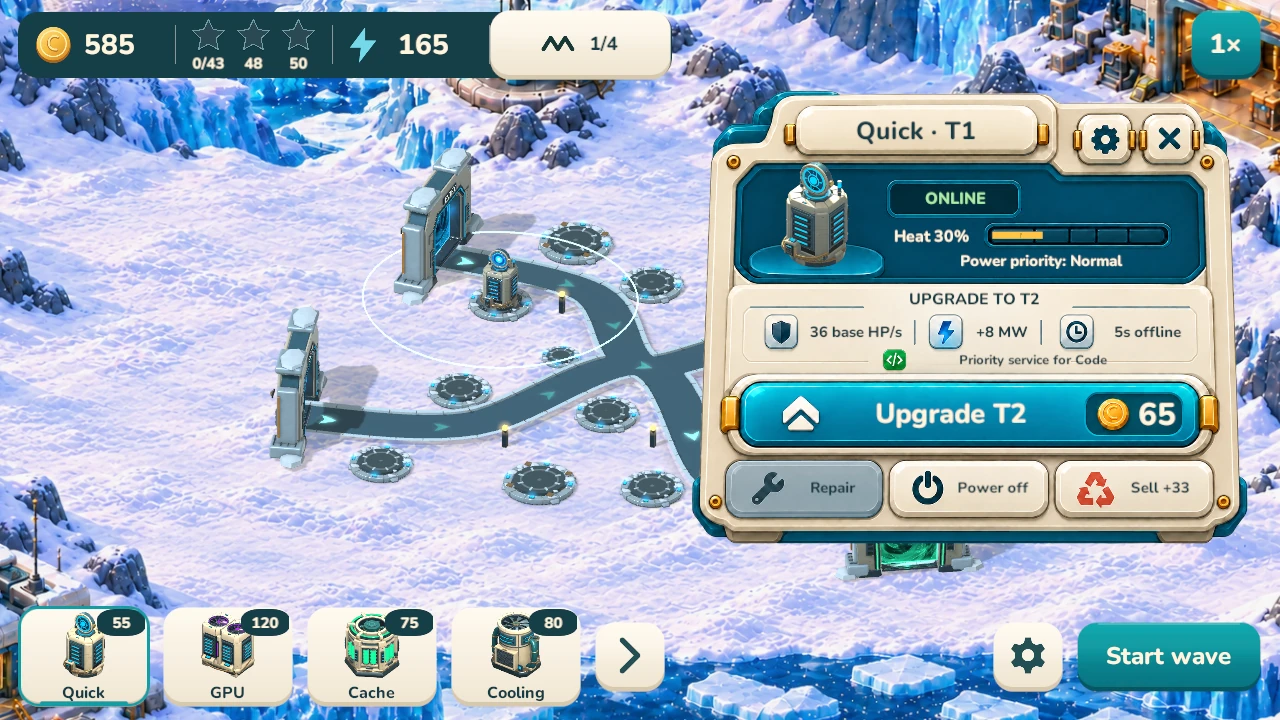
- Review the change. Own the next research tier. T2 needs at least 100 MW total capacity; T3 needs 180 MW, plus enough spare power for the job.
- Tap Upgrade T2/T3. Pay the shown credits, then resume. The tower stops serving while commissioning. Keep another server covering its route.
Blocked? Read the inspector reason: research, credits, capacity, an active job or a contract limit. Repair a wreck before upgrading it.
Power and salvage: a Power tower supplies nothing during its upgrade. Healthy towers sell between waves for 60% of their invested credits. Clear wreck takes 2 seconds and returns no credits.
06 / Service recovery
Repairs & recovery
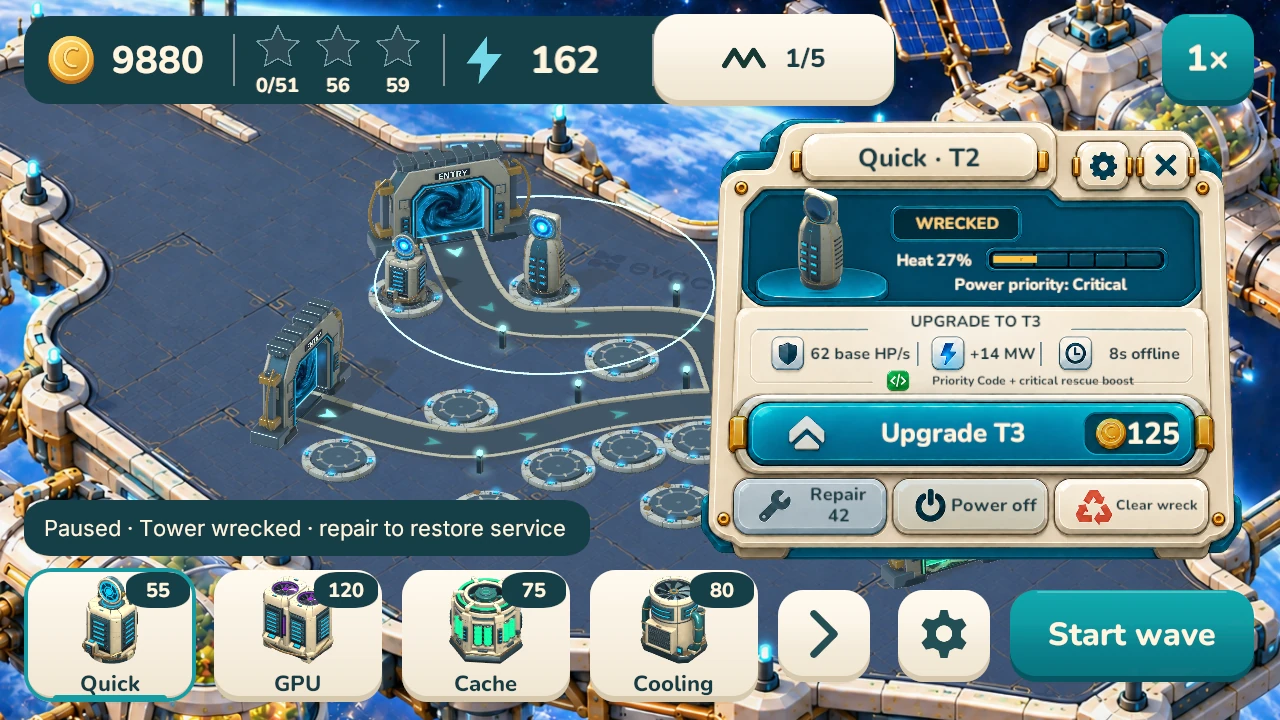
- Check the status. A wreck needs a paid repair. A software jam can expire on its own, or be cleared by a paid recovery.
- Tap Repair, then resume. Wreck recovery costs 35% of invested build/upgrade credits, rounded up, and restores the same tier. Spare restart power is required.
Jammed tower: recovery costs 15 / 20 / 25 credits at T1/T2/T3 and takes 1.5 seconds.
Automatic and emergency repairs
Maintenance Bay pays for repairs in range; its gear menu sets a 0 / 55 / 110-credit reserve. Emergency repair uses the normal fee, takes 45% less time and has a 40-second cooldown.
Quick T2 repair example: (55 build + 65 upgrade) × 35% = 42 credits; normally 8 seconds.
07 / Put it into practice
Outage drill: Ridge Blackout
Mission 8, wave 3 cuts grid power by 80% at 8 seconds, for 14 seconds. Plan your coverage, check the reserve and make the three calls below.
| Equipment | Load |
|---|---|
| 2 Quick T1 | 20 MW |
| 1 GPU T1 | 28 MW |
| 1 Firewall T1 | 18 MW |
| Site overhead | 20 MW |
| Total load | 86 MW |
One full UPS T1 has 80 MW output and 900 stored energy. Blackout grid supply is 30 MW. UPS load is 86 − 30 = 56 MW. Over 14 seconds, that uses 784 / 900 energy. The decisions below use this load.
Before wave 3
Turn Auto waves off. Check Plan > Disruptions, fully charge the UPS and finish active jobs. Set essential towers to Critical in their gear menu. Keep 42 credits available if a Quick T2 needs repair.
1. Upgrade now or defer?
Quick T2 costs 65 credits, adds 8 MW and takes 5 seconds offline.
Read the debrief
Defer until grid recovery. With this load, the upgrade needs 896 / 900 UPS energy through the outage. Only 4 units remain. Add generation first if you need T2 for wave 3.
2. More compute or power?
Another GPU T1 costs 120 credits and adds 28 MW.
Read the debrief
Power first. The extra GPU raises demand to 114 MW; grid plus UPS can supply only 110 MW. A 90-credit Power T1 adds 80 MW throughout the blackout.
3. Repair or replace?
After the outage, a Quick T2 is wrecked. Repair it or clear the site?
Read the debrief
Repair for 42 credits and 8 seconds to retain T2. Clearing gives no refund; a new Quick T1 costs 55 credits and loses a tier. Check spare restart power.
Replay: change one decision. Record deliveries and stars; note which tower lost power first.
08 / Explore the campaign
Level & technology codes
Codes permanently unlock a named mission on this device and the tower technologies available through its milestone. They are not case-sensitive.
- Open Settings > Redeem code.
- Enter a code below and tap Redeem.
- Tap View level, then start a fresh run to use the unlocked technology.
| Level | Mission | Code |
|---|---|---|
| 01 | First Connection | EVOCS-LINK |
| 02 | Mixed Workload | EVOCS-MIX |
| 03 | Stay Online | EVOCS-LIVE |
| 04 | Corruption Alert | EVOCS-ALERT |
| 05 | Across the Ridge | EVOCS-RIDGE |
| 06 | Backup Window | EVOCS-BACKUP |
| 07 | Rolling Maintenance | EVOCS-SHIFT |
| 08 | Ridge Blackout | EVOCS-DARK |
| 09 | Rush at the Gates | EVOCS-RUSH |
| 10 | Retry Loop | EVOCS-RETRY |
| 11 | Contagion | EVOCS-VIRUS |
| 12 | Launch Day | EVOCS-LAUNCH |
| 13 | High Noon | EVOCS-NOON |
| 14 | Solar Dip | EVOCS-SOLAR |
| 15 | Cooling Reserve | EVOCS-COOL |
| 16 | Peak Heat | EVOCS-HEAT |
| 17 | Ice Station | EVOCS-ICE |
| 18 | Remote Repair | EVOCS-FIX |
| 19 | Research Window | EVOCS-LAB |
| 20 | Whiteout | EVOCS-SNOW |
| 21 | Heat Rejection | EVOCS-VENT |
| 22 | Eclipse Window | EVOCS-MOON |
| 23 | Checksum Fault | EVOCS-FAULT |
| 24 | Critical Orbit | EVOCS-ORBIT |
| Level | Mission | Code |
|---|---|---|
| C01 | Efficient Start | EVOCS-SAVE |
| C02 | Security Drill | EVOCS-GUARD |
| C03 | Lean Reserve | EVOCS-LEAN |
| C04 | Bridge Shift | EVOCS-BRIDGE |
| C05 | Priority Lane | EVOCS-GOLD |
| C06 | Small Footprint | EVOCS-SMALL |
| C07 | Efficient Compute | EVOCS-GRID |
| C08 | Shaded Route | EVOCS-SHADE |
| C09 | Cold Reserve | EVOCS-COLD |
| C10 | Science First | EVOCS-STUDY |
| C11 | Clean Data | EVOCS-CLEAN |
| C12 | Minimal Reserve | EVOCS-BUDGET |
What a code changes
- The named level opens without its normal access prerequisite. Other levels are not automatically opened.
- Tower technology through that level’s research milestone is included. Contract codes use their parent mission’s milestone.
- You still pay mission credits for builds, upgrades and repairs, and meet power requirements.
- Codes award no stars, RP, credits or completed missions. Continue and Retry Opening keep their original technology.
Example: EVOCS-ORBIT opens Mission 24 and all tower technologies. It does not mark earlier missions complete.